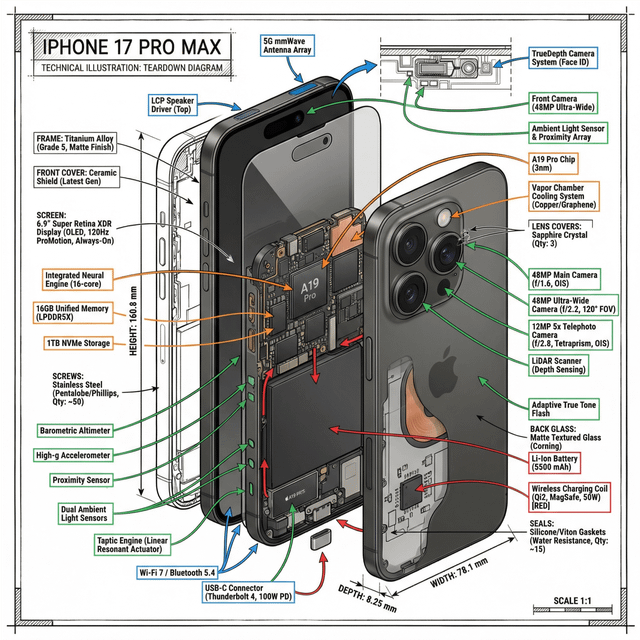
Turn any product into a museum-quality engineering teardown infographic using a single AI prompt. By combining photorealistic 3D rendering with technical ink annotations, isometric perspective, and color-coded component flows, this prompt transforms ordinary objects—like smartphones, drones, or laptops—into clean, professional diagrams that look straight out of an engineering manual. Simply replace the object in the template and generate stunning technical visuals in seconds.
Turn Any Product Into a Stunning Engineering Teardown with One AI PromptImagine turning any product—a smartphone, drone, laptop, car engine, or even a coffee machine—into a museum-quality technical infographic in seconds.
No Photoshop.
No Illustrator.
No hours of annotation work.
Just one carefully designed prompt.
Recently shared in the prompting community, this prompt acts like a mini design system for AI image models. Instead of simply asking for an image, it instructs the AI to produce a fully structured engineering teardown diagram—the kind you normally see in professional manuals or museum exhibits.
In this post, we’ll break down why this prompt works, how it’s structured, and how you can adapt it for your own projects.
---
The Idea: A Prompt That Creates Engineering Infographics
Most prompts are vague:
«“Create a diagram of a smartphone.”»
The result? Random diagrams with inconsistent style.
This prompt is different. It controls composition, perspective, annotation style, and visual language in one single command.
The result looks like:
- Professional engineering teardown
- Photoreal 3D render + technical annotations
- Clear data flow and component mapping
- Clean museum-exhibit aesthetic
It essentially tells the AI to behave like a technical illustrator + product engineer at the same time.
---
Why This Prompt Works So Well
The power of this prompt comes from layered instructions that guide the model step-by-step.
1. Hybrid Visualization Style
The prompt mixes two visual languages:
Photorealistic Render
- Gives the object realistic depth and texture
- Makes the product visually attractive
Technical Ink Annotations
- Provides engineering-style clarity
- Shows components and function
The combination creates visuals that look like they belong in:
- Apple design manuals
- museum exhibits
- engineering textbooks
---
2. Dramatic 45° Isometric Perspective
Instead of a flat front view, the prompt forces:
45-degree isometric perspective
Why this matters:
- Shows depth and structure
- Allows cutaway views
- Makes internal components visible
- Creates a more dynamic visual composition
This technique has been used for decades in:
- mechanical drafting
- architecture diagrams
- product teardown guides
---
3. Color-Coded Functional Flow
Another powerful feature is the annotation color system.
Each color represents a specific function:
- 🔴 Red — Power / Battery
- 🔵 Blue — Data / Connectivity
- 🟠 Orange — Processing / Thermal
- 🟢 Green — Sensors / Haptics
This transforms a complex diagram into something instantly understandable.
Instead of reading paragraphs, viewers can follow the colored arrows to understand how the device works.
---
The Ultimate Technical Infographic Prompt
Here is the complete template.
Simply replace [OBJECT] with any device.
Create a technical infographic of [OBJECT] with a 45-degree isometric 3D perspective showing the device slightly tilted to reveal depth and dimension.
Combine a realistic photoreal render with black ink technical annotations on pure white background.
Include:
Key component labels with color-coded callout boxes
Internal component visibility through transparent/cutaway sections
Measurements, dimensions, and precise scale markers
Material callouts and quantities
Color-coded arrows for function/flow:
RED (power/battery)
BLUE (data/connectivity)
ORANGE (thermal/processor)
GREEN (sensors/haptics)
Simple schematics or cross-sectional diagrams where relevant.
Place “[OBJECT]” title in a hand-drawn technical box (top-left corner).
Style:
Black linework (technical pen/architectural), sketched but precise.
Object remains clearly visible.
Educational museum-exhibit vibe.
Clean composition, balanced negative space.
Perspective:
Isometric 3D angle—tilted to show depth, dimension, and internal architecture dramatically.
Like a professional product teardown or engineering manual.
Colors:
~10–15% accent density.
Black dominant.
White background.
Output:
1080×1080, ultra-crisp, social-feed optimized.
---
Examples You Can Generate Instantly
Using this prompt, creators have generated detailed teardown diagrams for products like:
iPhone 17 Pro Max
Shows:
- camera modules
- battery architecture
- chipset placement
- cooling systems
---
DJI Mavic Drone
Highlights:
- motors and propellers
- sensors and obstacle detection
- battery pack
- flight controller board
---
MacBook Pro (M5 Concept)
Displays:
- SoC architecture
- cooling system
- SSD modules
- battery cells
---
Hidden Details Most People Miss
There are subtle instructions inside the prompt that dramatically improve the results.
1. The Hand-Drawn Title Box
Instead of plain text, the prompt asks for:
«“a hand-drawn technical box”»
This small detail gives the diagram an authentic engineering manual feel.
---
2. “Educational Museum-Exhibit Vibe”
This phrase guides the AI to:
- keep the layout clean
- prioritize readability
- avoid clutter
It shifts the image from artistic illustration to educational infographic.
---
3. Social-Feed Optimization
The prompt specifies:
1080×1080 resolution
This ensures the graphic is perfect for:
- Twitter/X
Meaning the output is ready to share immediately.
---
Pro Tips to Improve the Prompt
You can customize the prompt further depending on the object.
Add More Color Codes
Example:
- 🟣 Purple — Audio Components
- 🟡 Yellow — Structural Frame
- 🔵 Cyan — Cooling System
---
Control Cutaway Depth
You can instruct the AI with phrases like:
- “shallow cutaway revealing only top components”
- “deep cross-section showing internal architecture”
---
Change Annotation Style
Try variations like:
- vintage blueprint annotations
- minimalist digital callouts
- industrial schematic labels
---
Why This Prompt Is a Masterclass in AI Prompting
This prompt works because it is:
✔ Specific
✔ Structured
✔ Visually descriptive
✔ Goal-oriented
Instead of telling the AI what to draw, it explains how the entire diagram should function.
It is essentially a design brief inside a prompt.
---
Final Thoughts
AI prompts are evolving from simple instructions into complete creative workflows.
This technical infographic prompt proves that with the right structure, you can turn AI into:
- a technical illustrator
- a product engineer
- a visual designer
—all at once.
So try it yourself.
Replace [OBJECT] with anything:
- Tesla Battery Pack
- PlayStation Controller
- Mechanical Keyboard
- Camera Lens
- Coffee Machine
…and watch AI generate a professional engineering teardown in seconds.
---
If you enjoy experimenting with prompts like this, start building your own prompt systems instead of single prompts.
That’s where the real power of AI creation begins.
Discussion (3)
Leave a Comment